A five-minute tour of TechStat
TechStat tells your own people about outages and planned maintenance before they have to ask. This guide takes you from an empty account to your first alert, then walks through three real-life examples. Everything shown uses made-up "Acme Corp" data.
1. Services2. People3. Post an event4. Keep people posted5. Choose how you are told ExamplesRoles
1Add what you run
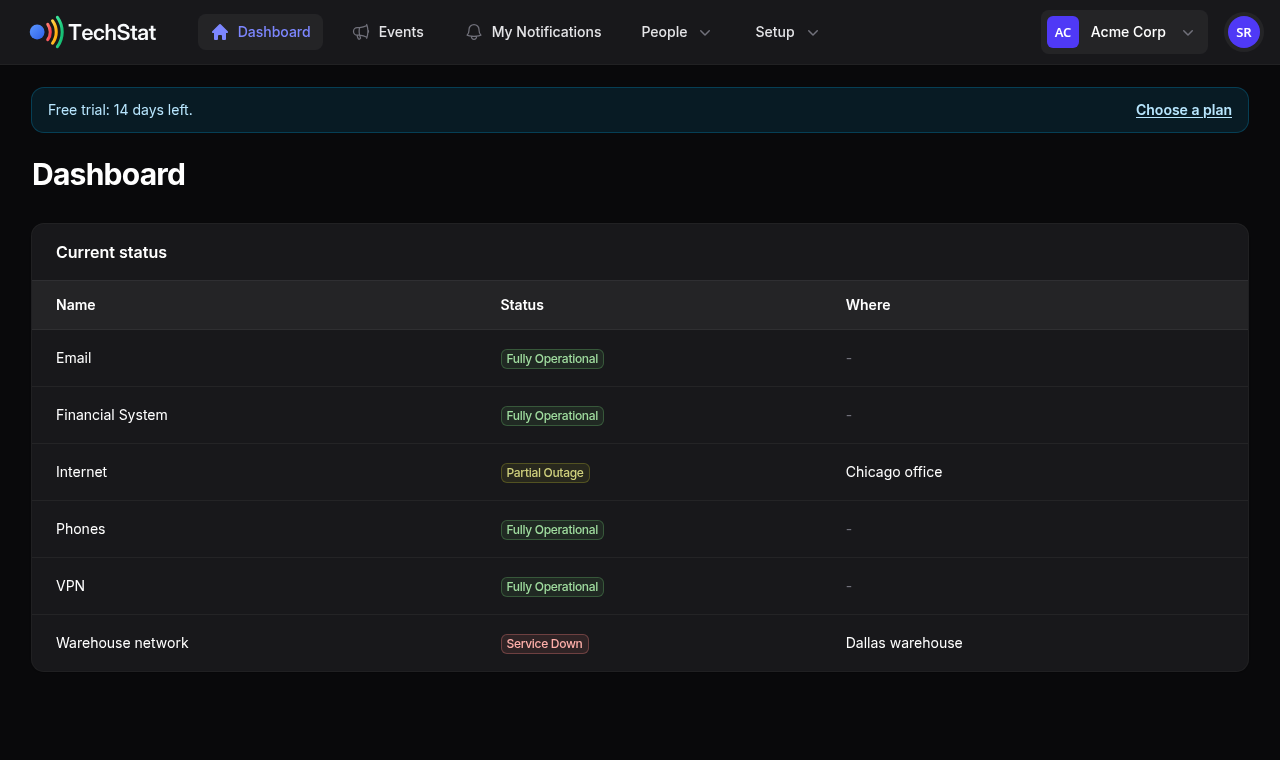
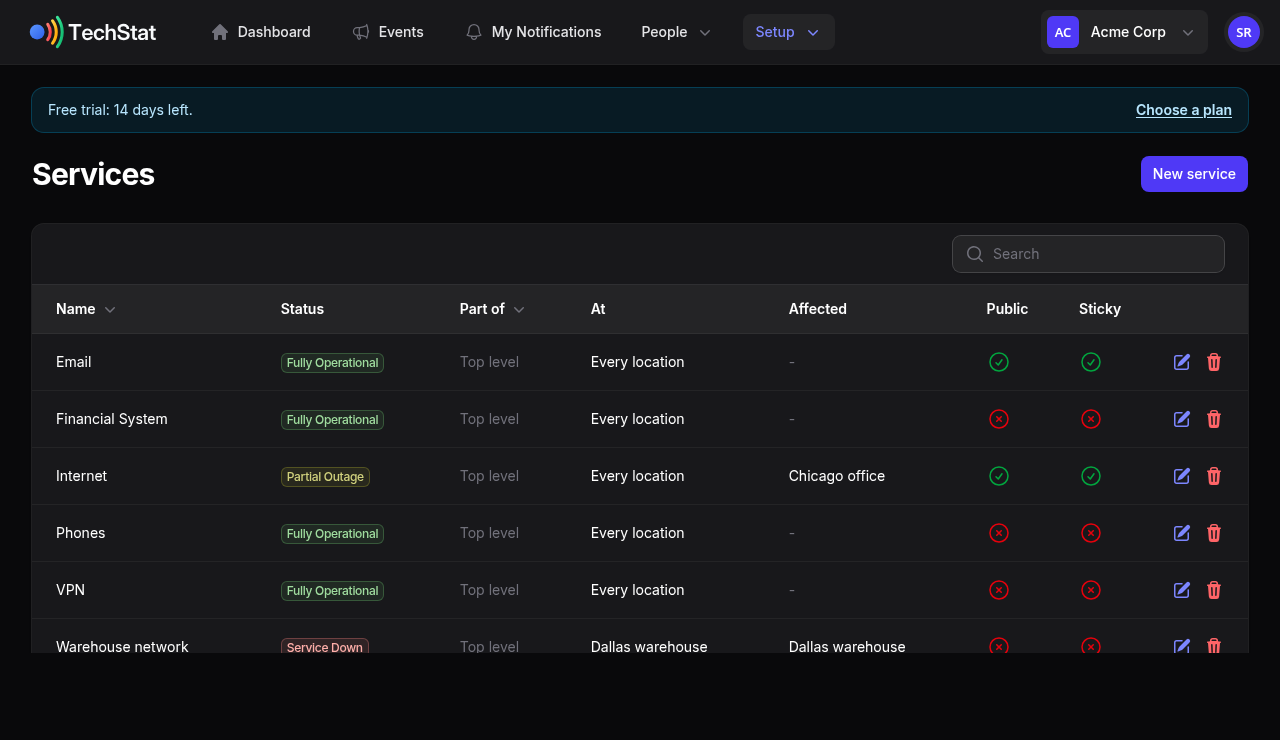
A service is anything people depend on and ask "is it just me?" about: email, the ERP, the VPN, the phones, each plant's network. Open Setup › Services and add them. Give each a plain-language name, because that is what appears in messages.
- Part of nests one service under another (an SMTP relay under Email).
- Sticky marks the services new people follow by default.
- Visible to a group keeps a service private to that group (Payroll trouble reaches Finance, not the company).
More than one site? Add locations
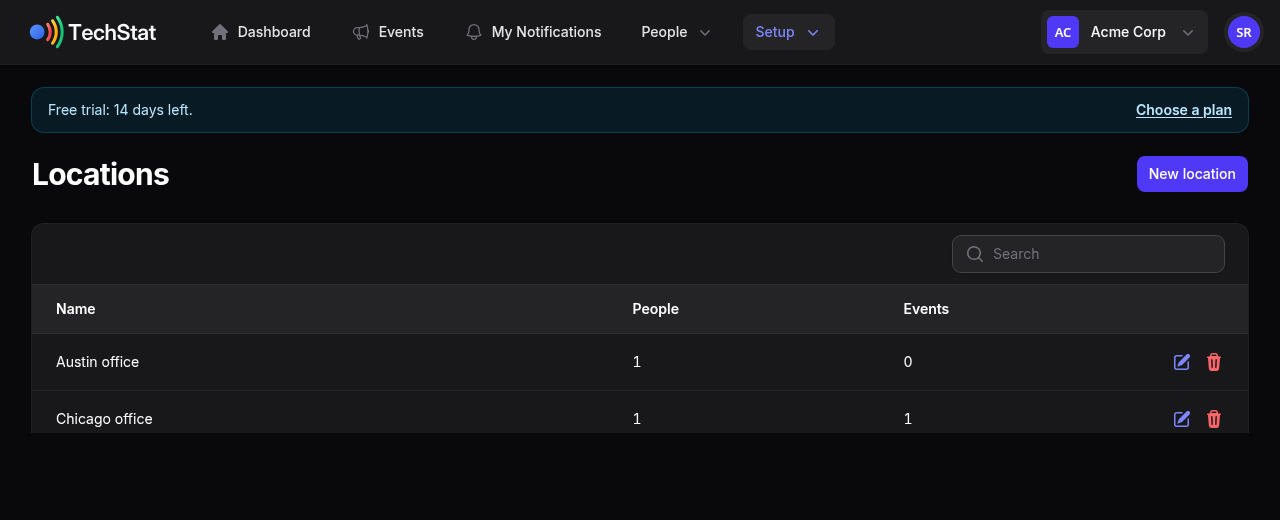
Under Setup › Locations, add your offices, plants or data centres. Until you add the first one, locations are not mentioned anywhere. After that, each service says whether it exists at every location (the default) or only some, and an event can say where it happens.
2Add the people to tell
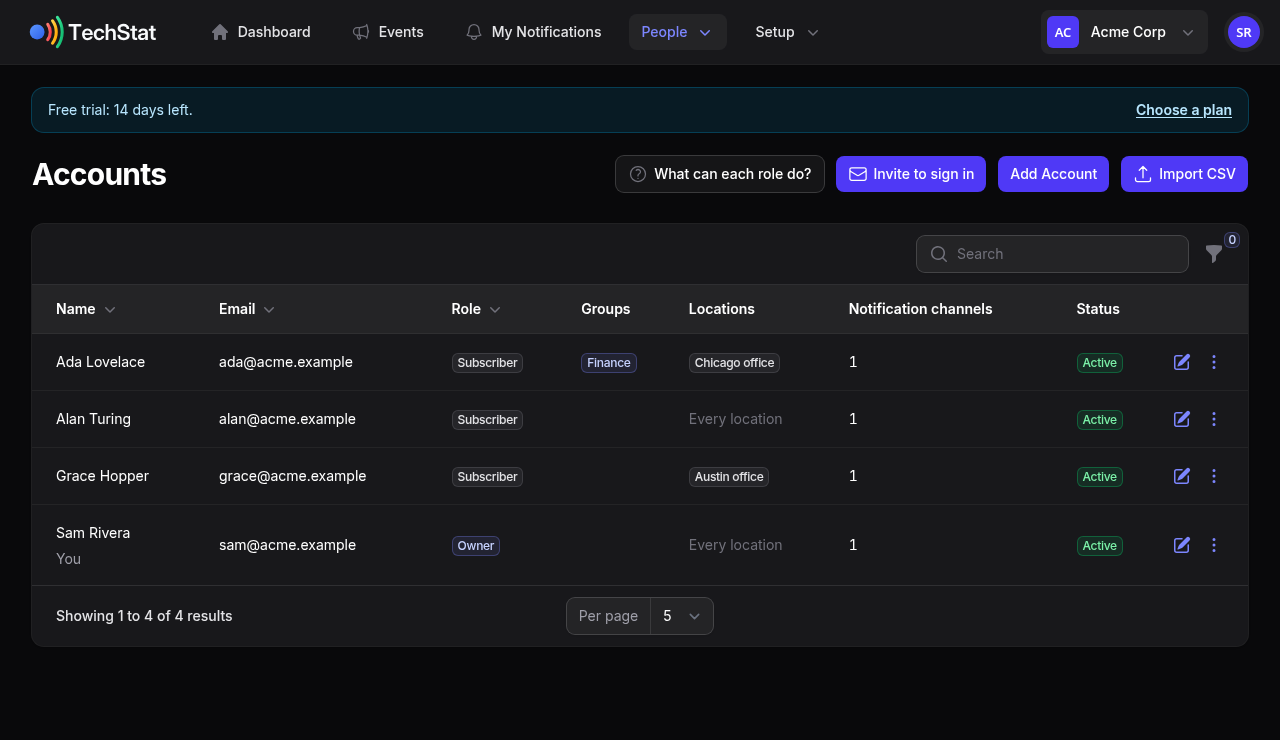
Open People › Accounts and press Add Account, or import a CSV. Choose a role:
- Subscriber is simply told about things. No password and no login: they ask for an emailed sign-in link whenever they want to change their settings, and every message has an unsubscribe link.
- A role that signs in (viewer, publisher, admin, owner) also sends them an invitation. The role takes effect when they accept it, so a login always belongs to someone who has proved their address.
Put people in groups to aim a message at them, and, if you use locations, say where they are. Someone with no location hears about everything. Someone set to tell them about every location, such as your help desk, hears about local events everywhere.
3Post an event
Press Events › New event. Choose Incident for something broken, or Scheduled maintenance for planned work. Pick the affected services and write a message in plain language: what is affected and what people should do.
Example form (illustration).
If your organization has switched on AI writing help (Org Settings), a Draft with AI button turns your rough notes into a clear message. It only fills in the form, so you read and change it before anything is posted, and it is off unless an owner or admin turns it on.
Who hears about it?
By default, everyone who follows the affected services, wherever they are. That is right when people elsewhere are affected too: if the Chicago phones are down, callers in Austin want to know why nobody answers. Switch on Only tell the people at these locations for things only the people there care about, like a power cut at one site. People with no location, and people set to hear about every location, are always told.
What they receive
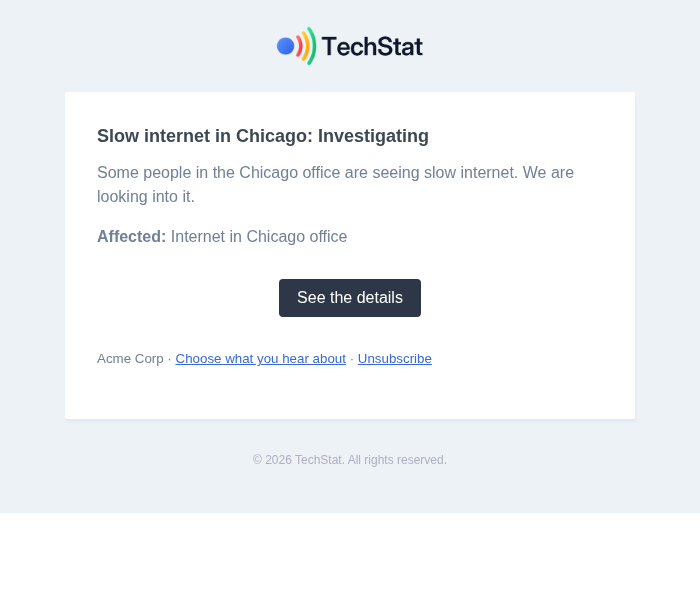
It opens a private page for that one message, with the event and its updates. It works for 30 minutes, so it is not a public page and the service does not have to be on one. After that the page offers to email a fresh link to the address on file.
Public status pageOptional. Turn it on in Org Settings, mark which services are public, and write a separate message for the public so nothing internal leaks. Without it, no public fields appear anywhere.
4Keep people posted
Open an event and press Post update as things move: investigating, identified, monitoring, resolved. Each update is sent to the same people, and the timeline keeps the history. When the last event affecting a service resolves, the service returns to normal on its own.
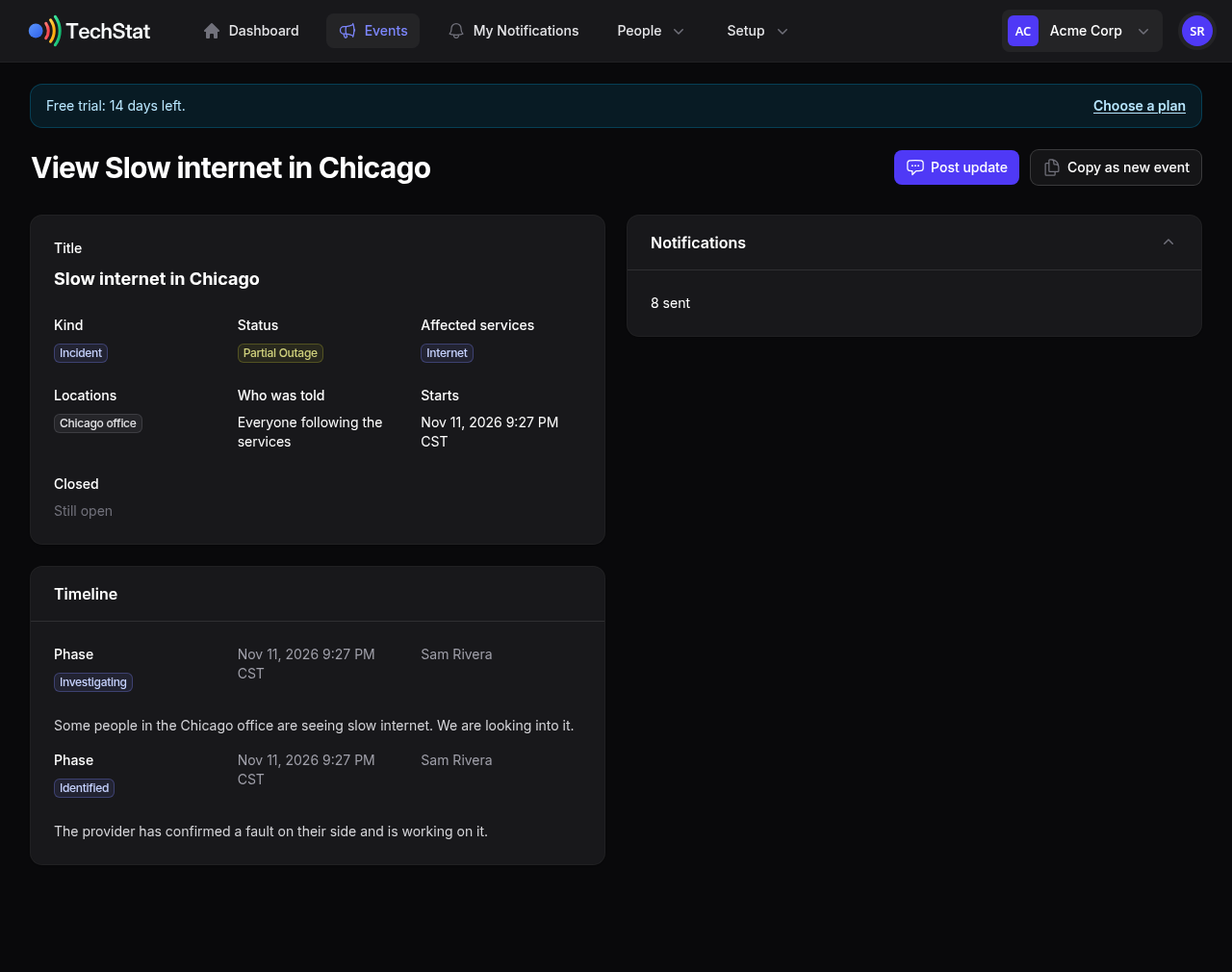
Planned maintenance runs itself: people are reminded a day and an hour before (you choose), the start and the finish are announced on time, and one click ends it early.
5Choose how you are told
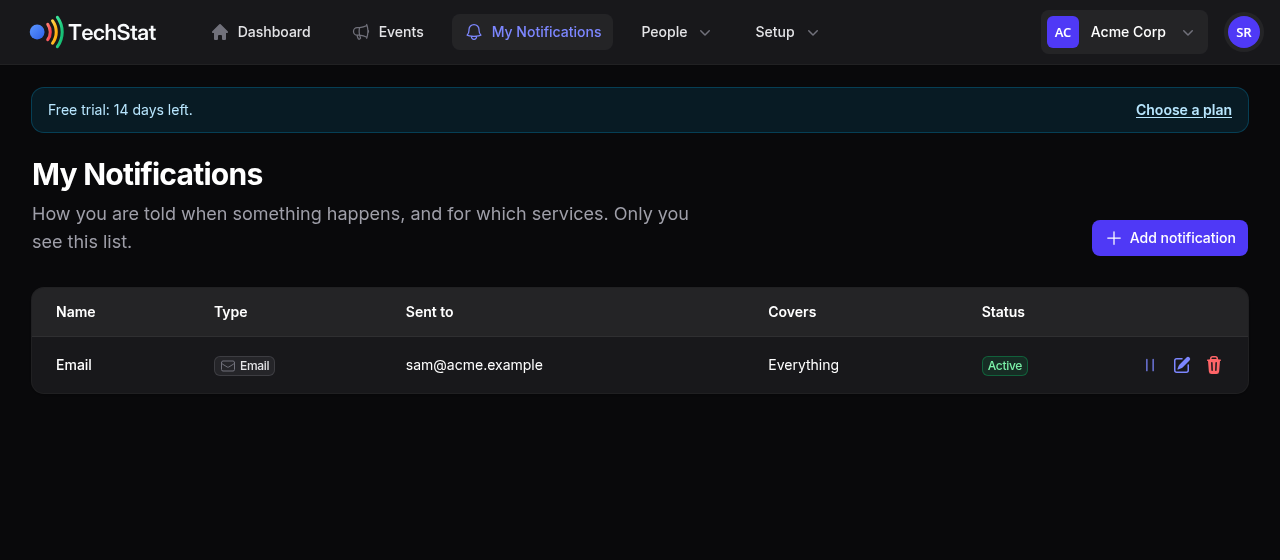
Everyone who signs in has My Notifications: a simple table of the ways they are told, with a button to pause each one. Your sign-in email is already there. Add another email, a US mobile number for text messages, a Slack or Teams incoming webhook, or a signed webhook for your own systems, and choose which services each one covers. Each person can have two of each kind. Subscribers do the same from the sign-in link in any message.
Three worked examples
1. The ERP upgrade on Saturday night
The finance system will be down for three hours on Saturday at 2:00 AM.
- Events › New event, kind Scheduled maintenance, service Financial System, Saturday 2:00 to 5:00 AM. The message tells people to finish and save their work first.
- Everyone following the service is told right away that it is scheduled.
- On Friday and an hour before the start, they are reminded.
- At 2:00 AM TechStat announces that work has started, and at 5:00 AM that it is finished, without anyone being awake to type it. If it finishes at 3:30, press Post update and end it early: everyone is told.
2. Slow internet in Chicago, power out in Dallas
Two problems at once, and they need different audiences.
- Chicago internet is slow. Remote staff and the help desk want to know, because the problem may follow them. The event names Internet at Chicago office and leaves the audience at its default, everyone following. The subject reads "Slow internet in Chicago: Investigating - Internet in Chicago office".
- Power cut at the Dallas warehouse. Only the people there care. The event names Warehouse network at Dallas warehouse and has Only tell the people at these locations switched on. The Dallas team, anyone with no location set, and the help desk (set to hear about every location) are told. Nobody else is bothered.
- The dashboard shows both at once, each affecting only its own place, and one cannot hide the other.
3. A monitoring alert opens an incident by itself
Create an API token under Setup › API Tokens (it is shown once). Then let Datadog, CloudWatch or a script open, update and resolve events:
curl -X POST https://techstat.us/api/v1/events \
  -H "Authorization: Bearer tsk_..." \
  -H "Content-Type: application/json" \
  -d '{ "kind": "incident", "title": "Email is slow",
        "services": ["Email"], "severity": "Partial Outage",
        "message": "Alert fired: mail queue over 500.",
        "locations": ["Chicago office"], "local_only": false,
        "external_id": "datadog-8841" }'
- The
external_idis your alert's own id. If the monitoring tool retries, or the same alert fires twice, no second event is made. - Later calls add updates with the same id, and "resolved" twice is harmless.
locationsandlocal_onlyare optional. Names are checked against your own locations, and an unknown one is refused.- If you have turned on update reminders and an incident opened this way goes quiet, the reminders go to everyone who can post updates, since nobody opened it by hand.
Roles at a glance
| Owner | Answers for the organization: billing, owners and admins, and everything below. |
|---|---|
| Admin | Sets everything up and looks after publishers, viewers and subscribers. |
| Publisher | Posts and updates events. |
| Viewer | Signs in and can look, nothing more. |
| Subscriber | Is told about things. No login; manages their own settings from a link we email. |
Menu map: Dashboard and Events and My Notifications across the top, then People (Accounts, Groups) and Setup (Services, Locations, Statuses, API Tokens, Activity, then Billing and Org Settings).